 Deltella
Your tools go where your hand is.
Most drawing apps keep their tools in a bar along the top of the window. In Deltella you can take one off the case and set it down beside your work, or call all of them to the tip of your pen or your mouse. Everything here works with a keyboard and mouse as well as a pen.
Pull a tool out and leave it anywhere.
Drag the pen out of the case and let go wherever you like: beside the paragraph you’re writing, in a corner, at the foot of the screen. It stays there, and the case gets smaller without it.
- Tap it to pick it up. Tap again for its colour and size, which open right beside it.
- Let it go near the edge of the screen and it settles against the edge.
- It stays where you left it while the page scrolls, and it’s still there tomorrow.
- Drop it back on the case to put it away. Reset brings every tool home.
The tools fade back while you write and are hidden while you present, so they never cover the work.
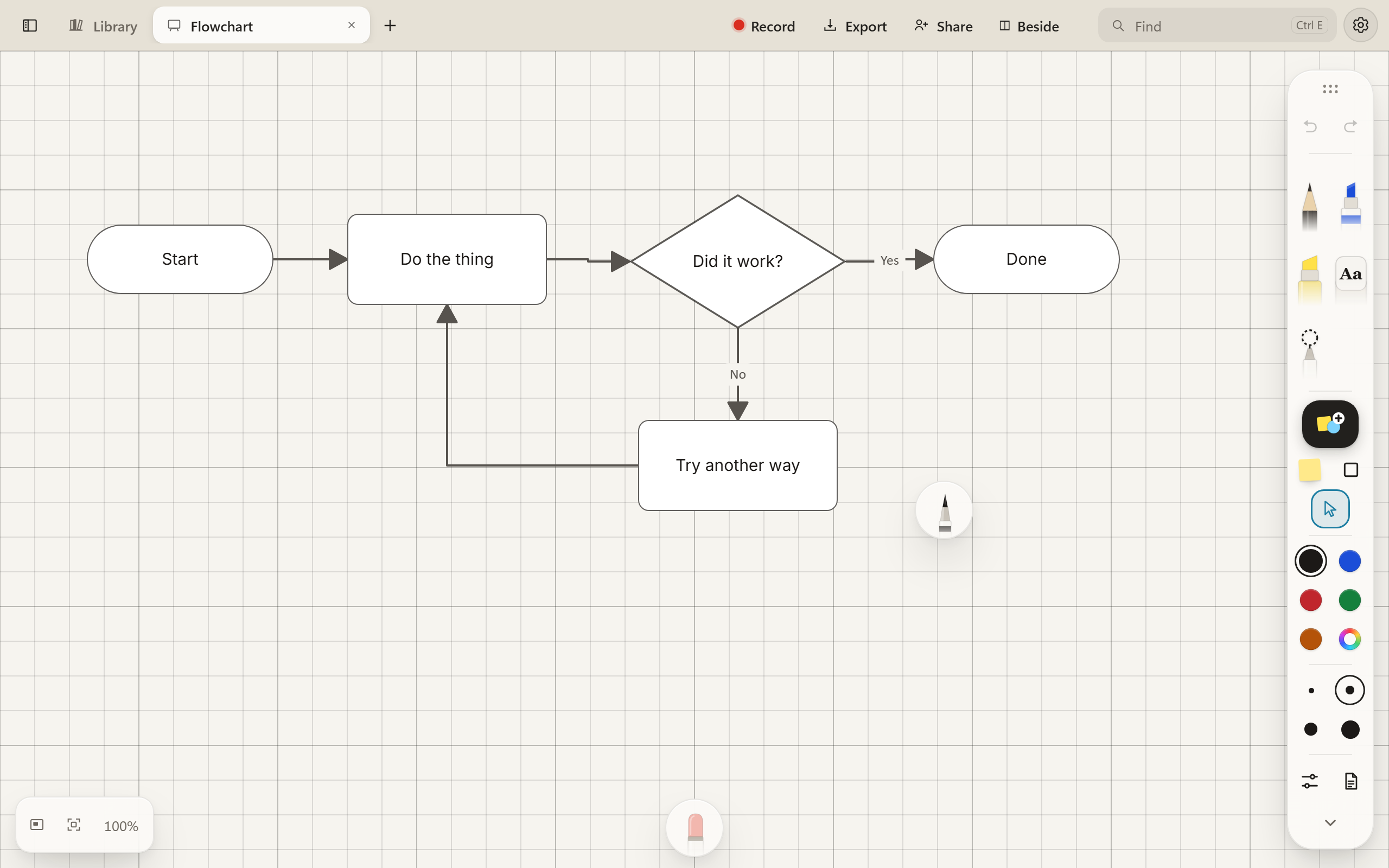
A ring of tools at the tip of your pen, or your mouse.
Hold the button on the side of the pen and keep the pen still for a moment. A ring opens around the nib: every instrument close in, your colours and sizes further out, and undo in the middle, right where the nib already is. Your hand never travels to a toolbar.
- The ring stays open until you choose, so you tap what you want instead of having to swing out and let go in one movement.
- Move the pen instead of holding it still and you pan the page, as before. The ring only comes when you wait for it.
- With a mouse, right-click the paper for the same tools as a menu with words, then Show the ring, or set it to always open the ring.
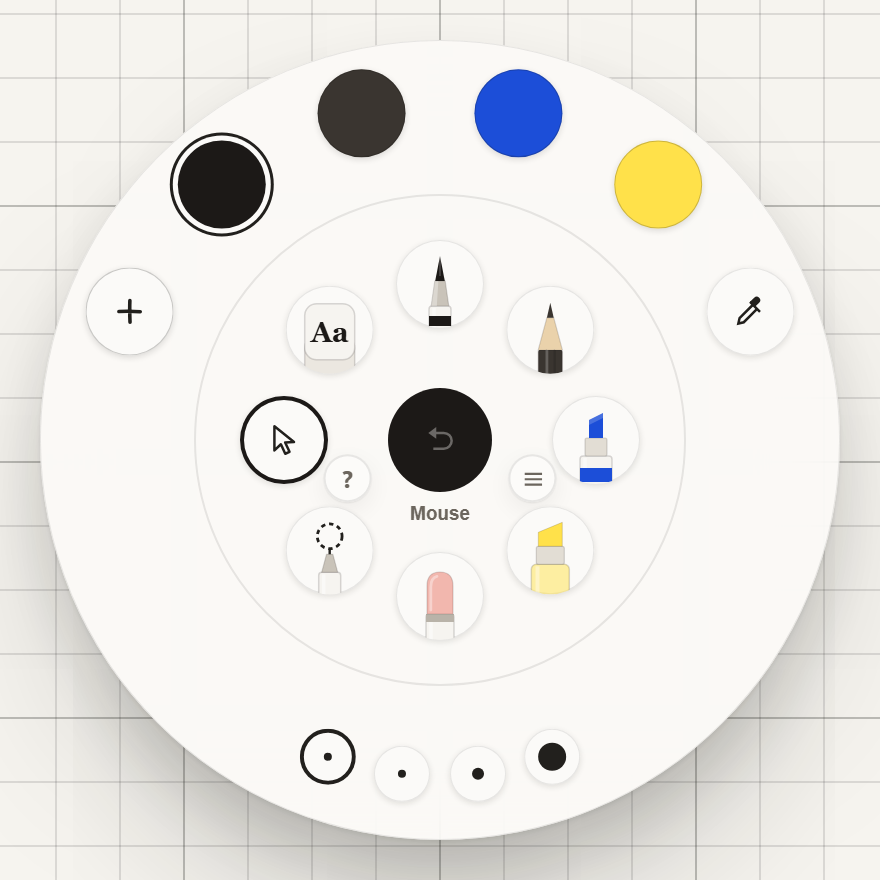
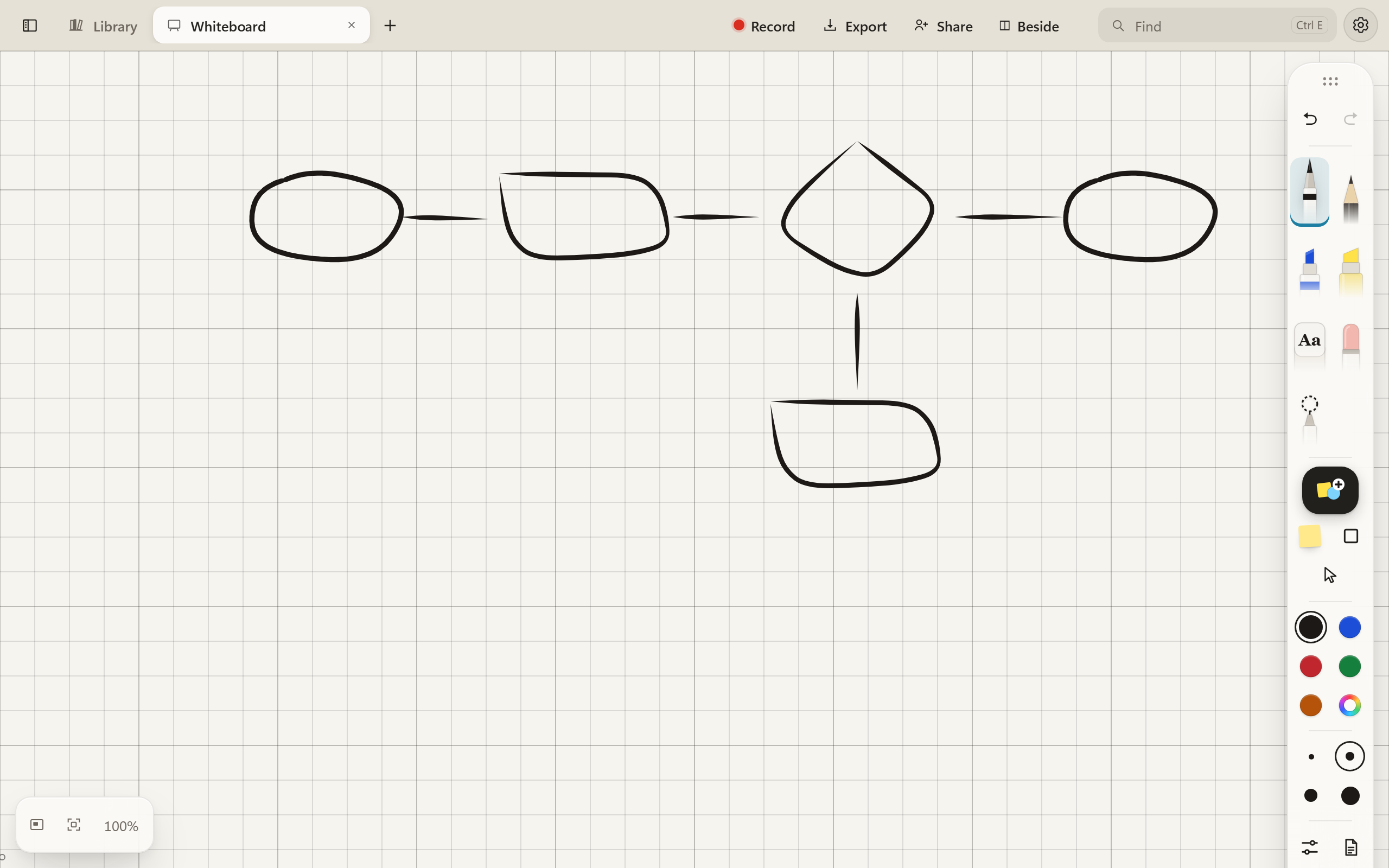
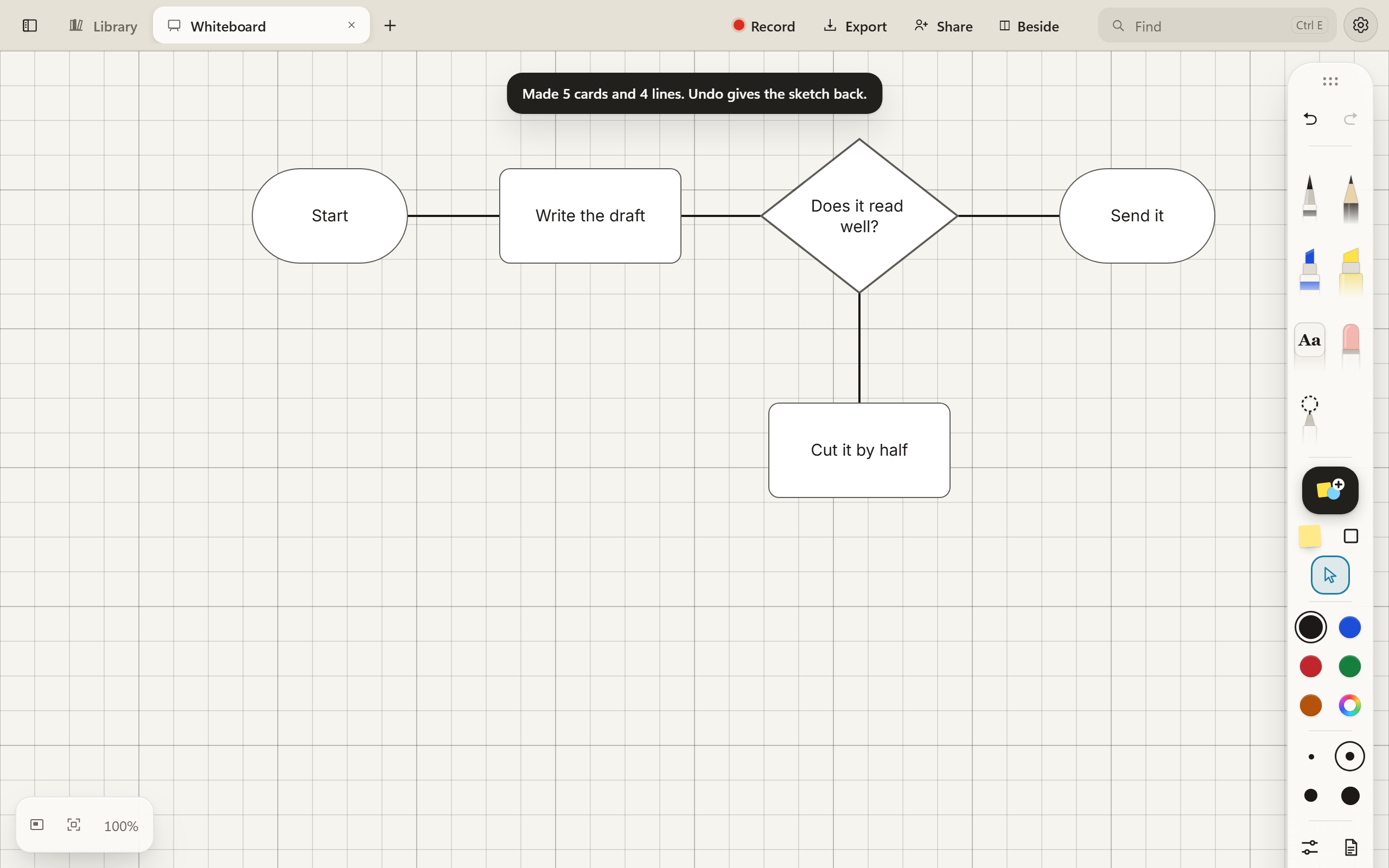
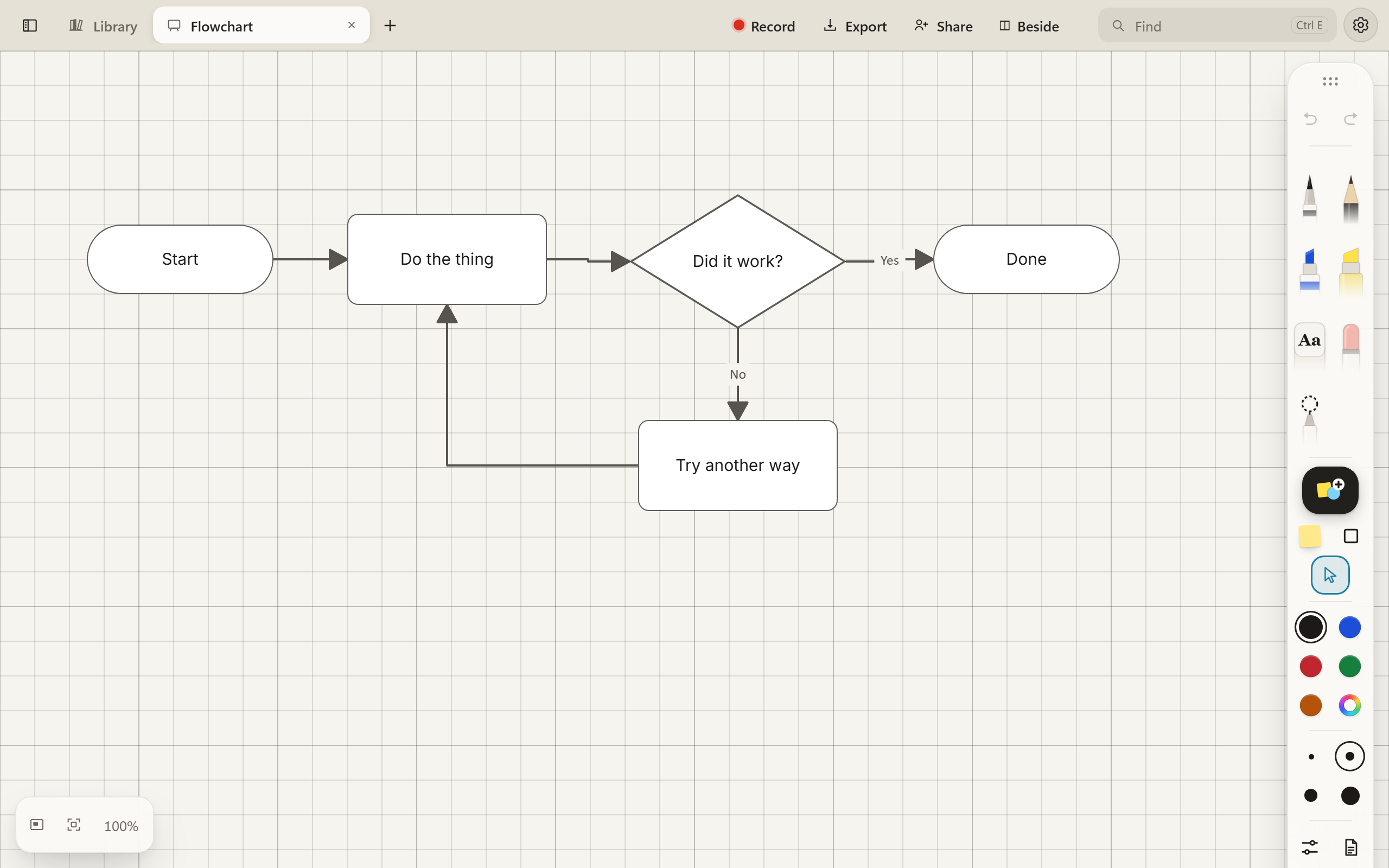
Sketch a flowchart, and it becomes one.
Draw it roughly with the pen, the way you would on paper. Select the sketch and choose More, then Make a diagram, and every shape becomes a card you can type in and move.
- Boxes become steps, rounded ones become Start and End, and diamonds become decisions.
- Lines become connectors that stay joined when you move a card, with arrows pointing the way you drew them.
- The cards line up on a grid. Undo gives you your sketch back.
In the Windows app, words you wrote inside a shape are read and typed into its card.
Type in your own handwriting.
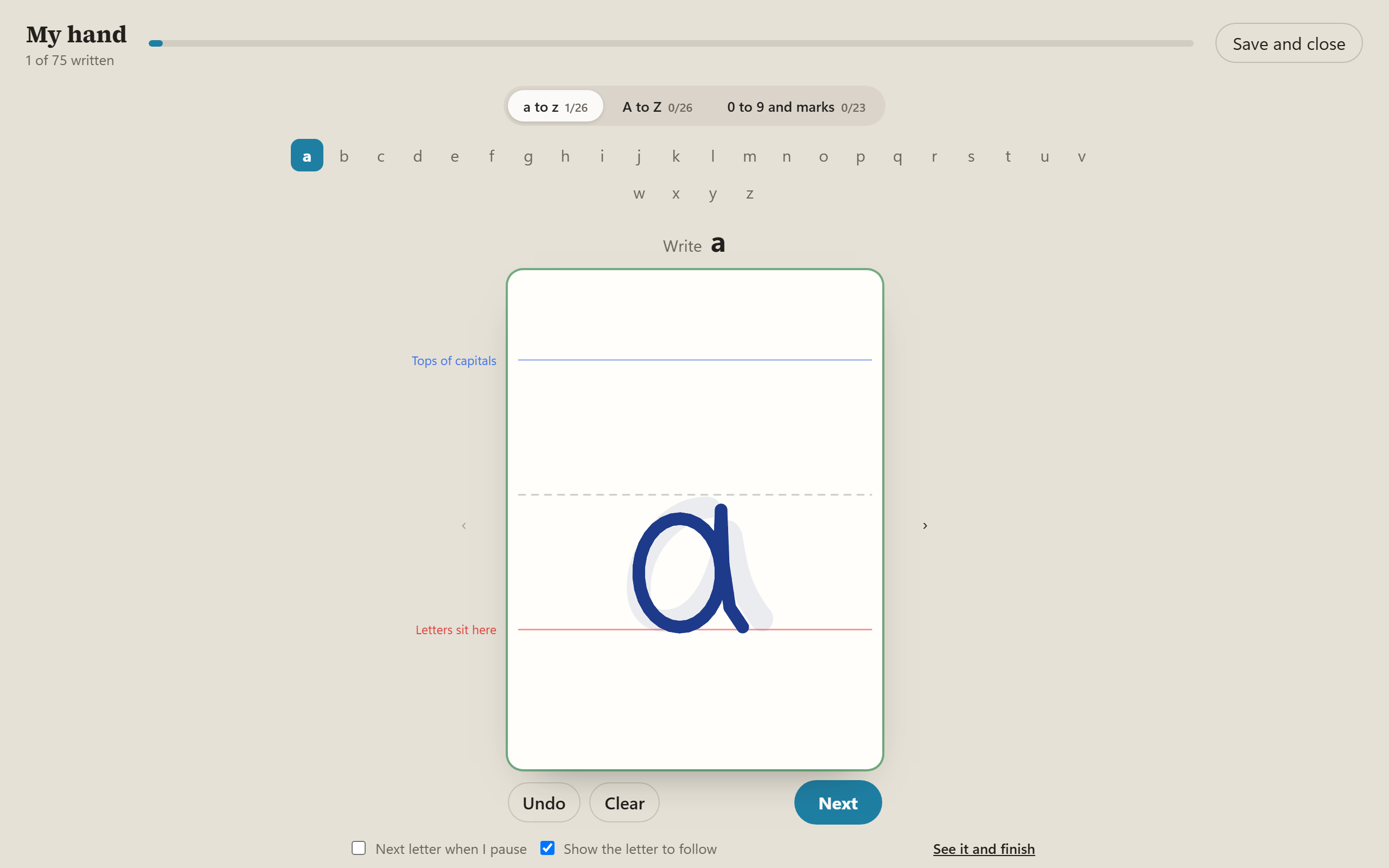
My hand turns your handwriting into a real font. Write each letter once in a large box, with lines for the tops of capitals and for where letters sit, and a faint letter behind to follow if you like.
- It moves on to the next letter when you pause, or you can jump to any letter. Stop part-way and come back later.
- Typed notes, notes put down with the pen, and Turn into text can all be set in it.
- It goes into PDFs too. A letter you haven’t written falls back to Deltella’s own hand.
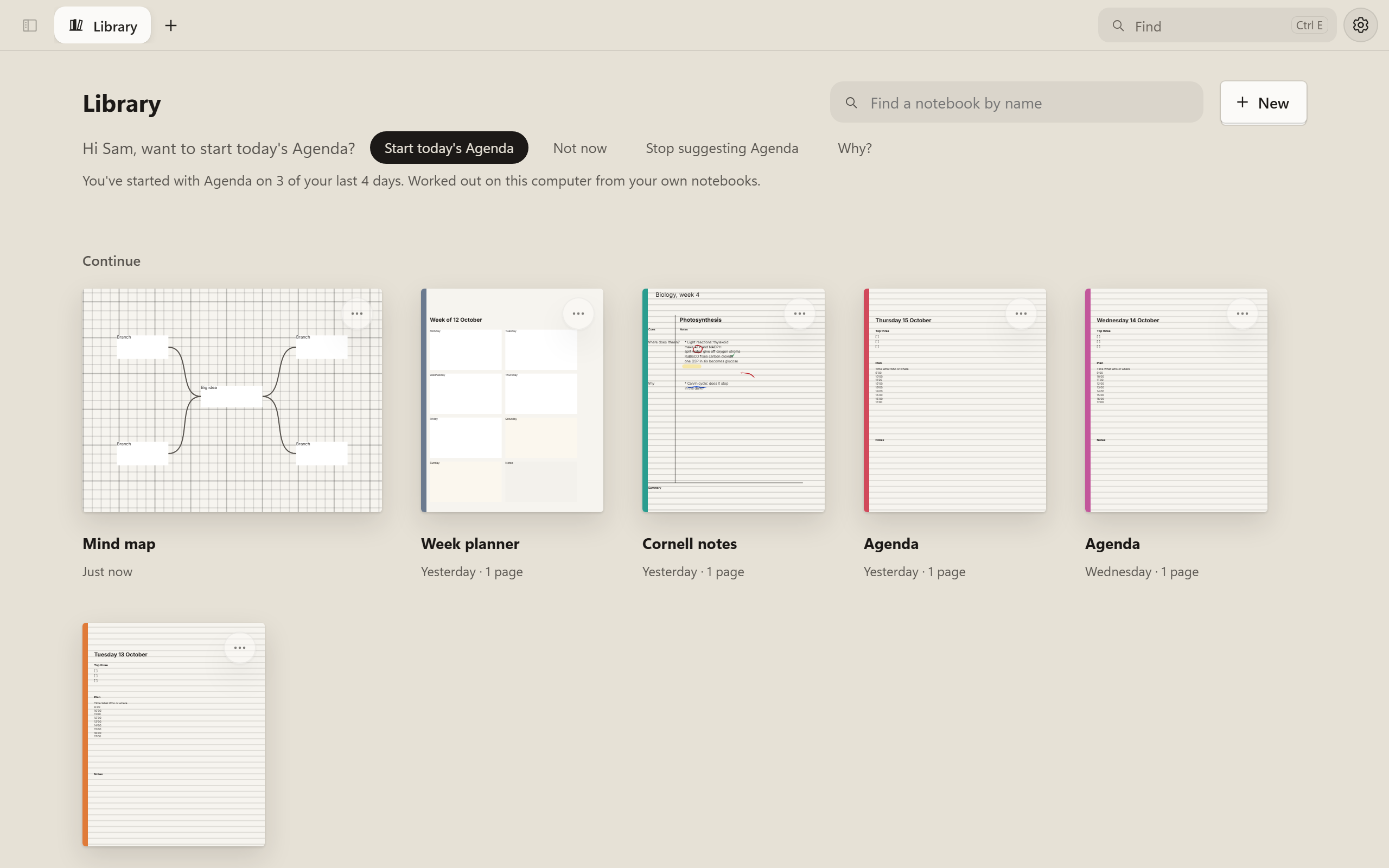
A Library that learns how you start the day.
The Library says hello, and it notices your habits. Start three mornings with an Agenda and the next morning it offers to make today’s, named for the day and filed in the folder you used before.
- It learns the template you start each day with, the one you use on a certain weekday, a page you keep making by hand, and the notebook you were in yesterday.
- Why? tells you what it noticed, in plain words.
- It’s worked out on your computer from your own notebooks, and nothing it learns is sent anywhere. Not now, Stop suggesting, or one switch in Settings turns it off.
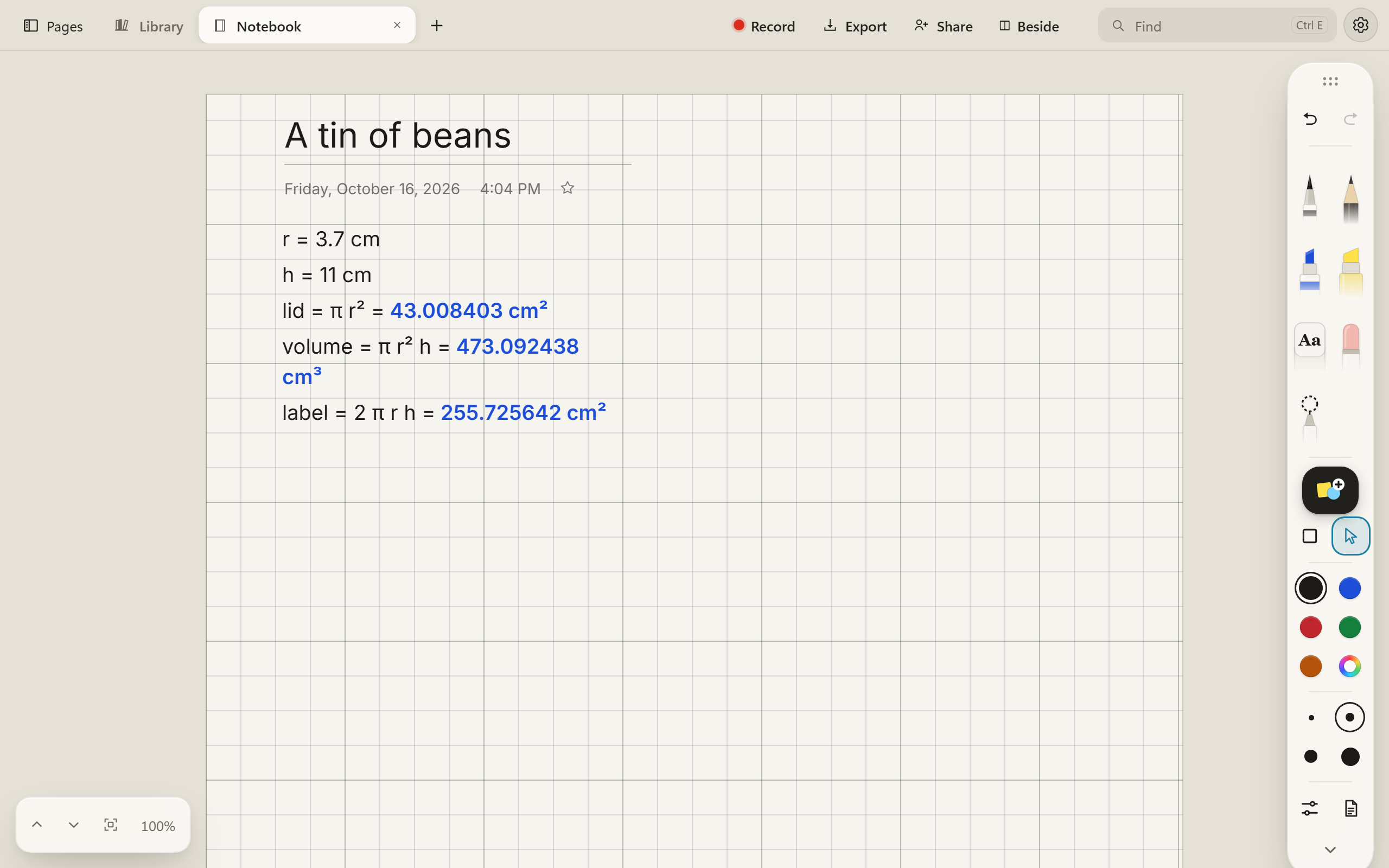
Sums that work themselves out.
Type a line that ends in = and the answer appears after it. Set r = 3.7 cm anywhere on the page and every line that uses r knows it. Change it, and every answer changes too.
- Units carry through: centimetres times centimetres gives square centimetres.
- π, powers, square roots, sin, cos and logs, with no need to write the times sign.
- A line that can’t be worked out just gets no answer, never an error.
Whiteboards don’t end, and notebooks grow.
Draw a box, hold the pen still, and it snaps square. Drag from one box to the next to join them, and the line follows when you move them. Write past the bottom of a notebook page and there’s more page.
- Shape libraries for flowcharts, UML, entity relationship diagrams and cloud diagrams, switched on as you need them, with a search across all of them.
- Guides that line things up as you drag, frames to group a part of a board, and Home to bring everything back into view.
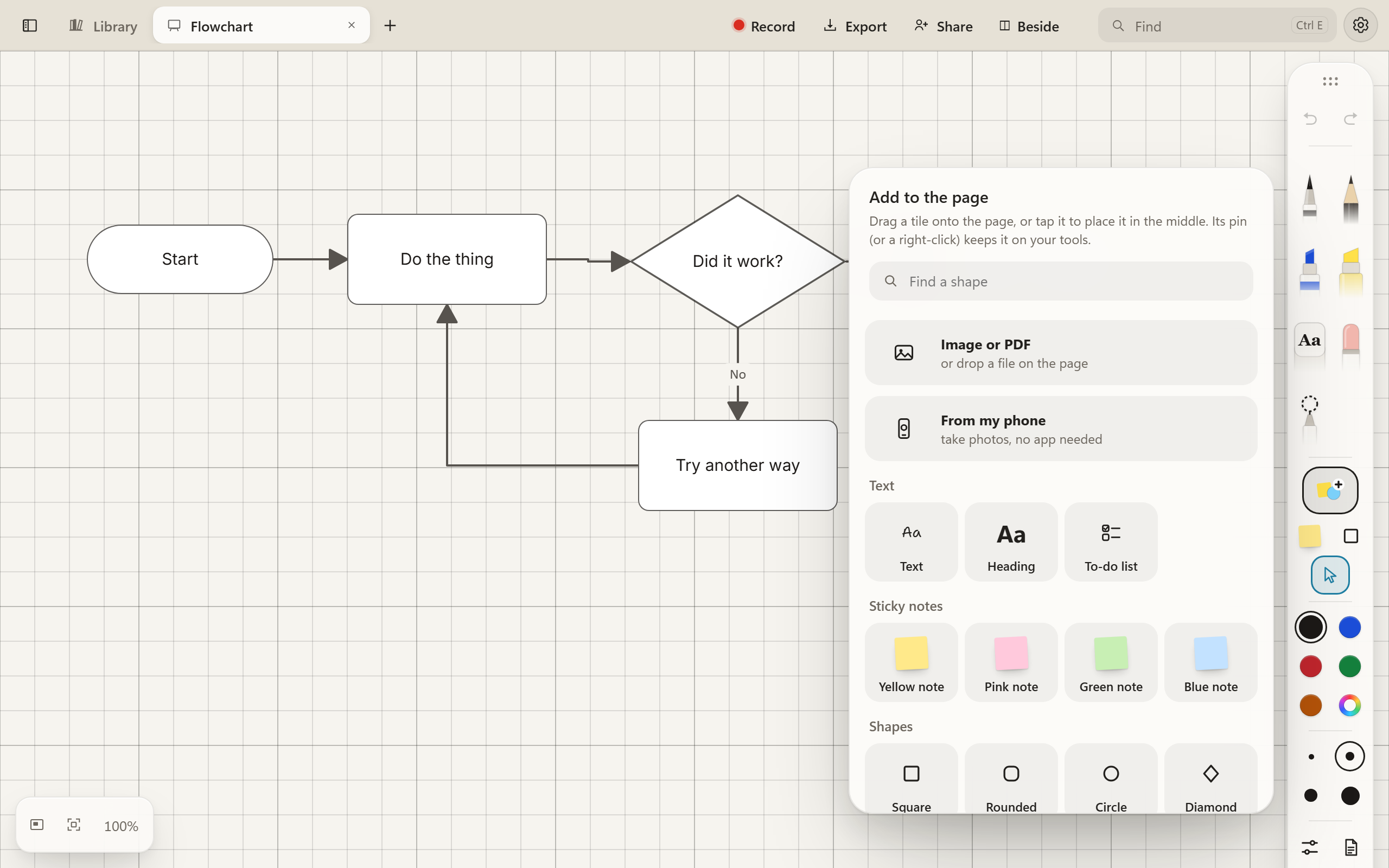
Notes, shapes and diagrams from Add.
Add holds everything you can put on a page that isn’t ink: text and headings, to-do lists, sticky notes, shapes, and pictures or PDFs. Drag a tile where you want it, or tap it to drop it in the middle.
- Find a shape by name across every library, switched on or not.
- Hold a tile to pin it to your tools, so the shapes you use most are one tap away.
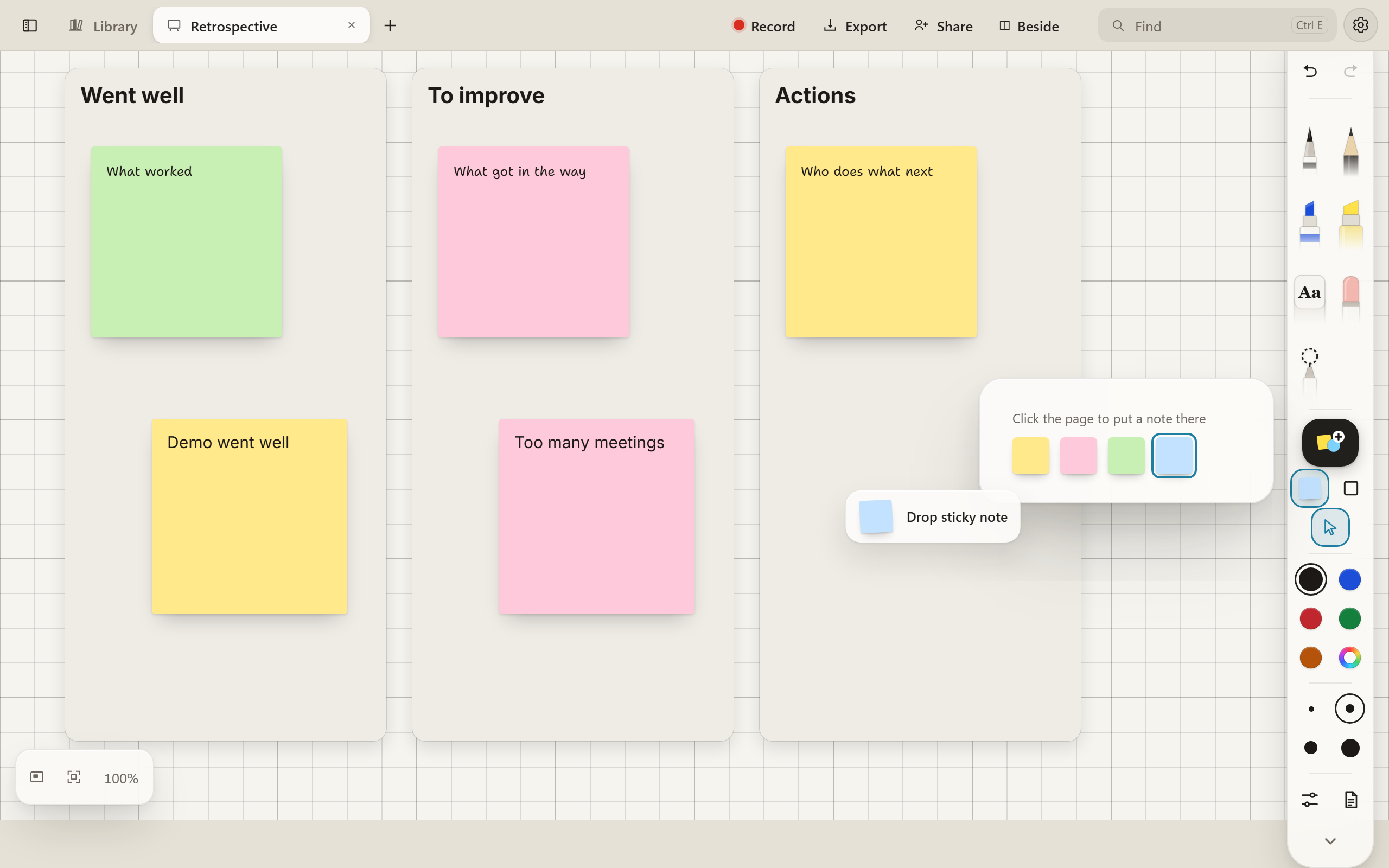
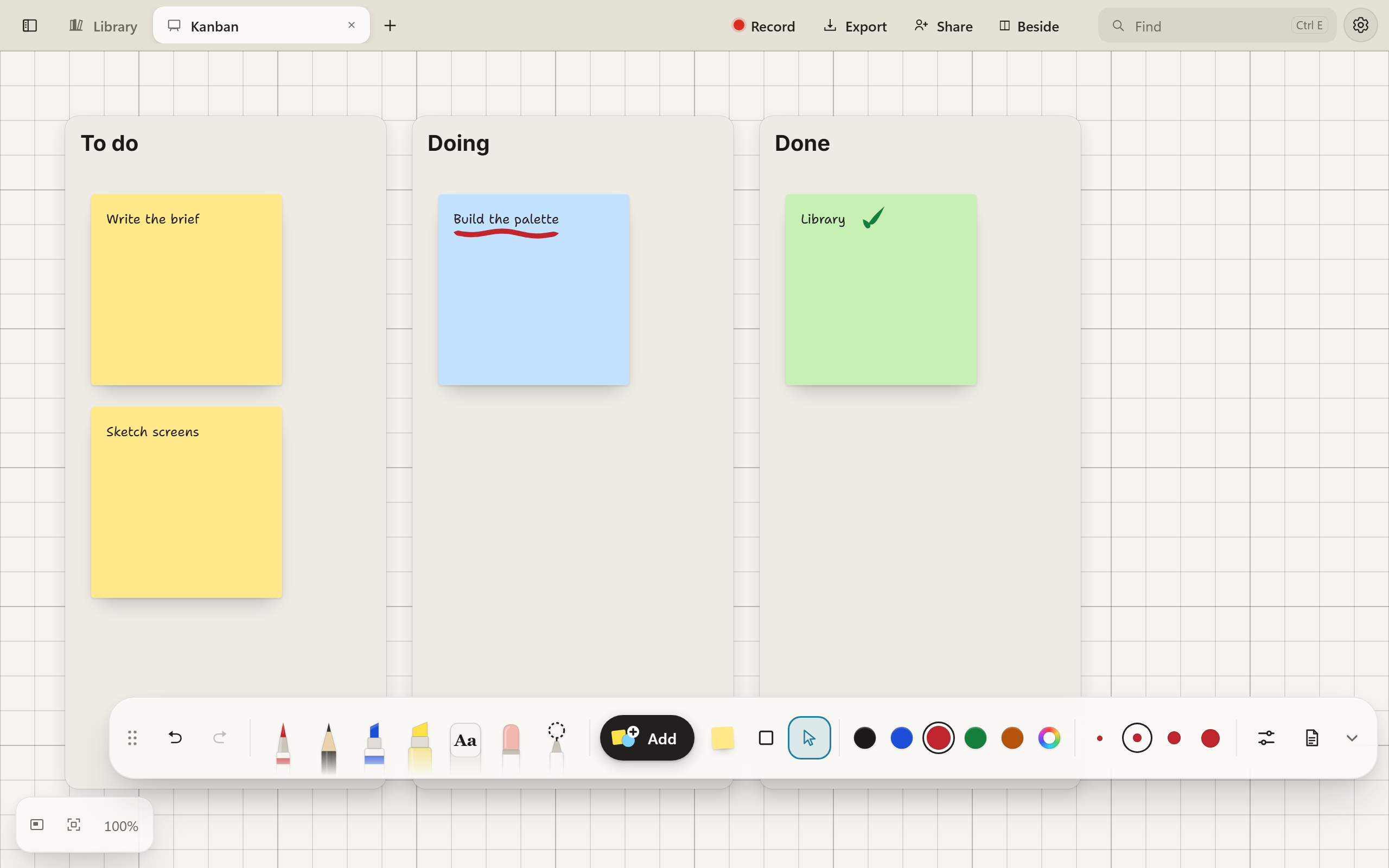
A sticky note, one tap away.
On a whiteboard the tools have a sticky note of their own. Tap it, pick a colour, and click where it goes. The note is ready for typing straight away, and then the tool lets go, so your next click is yours again.
- Four colours, the same as in Add, and the one you picked last is remembered.
- Right-click the paper for Sticky note here.
- Drag a note by its body to move it. Type on a note that sits on a column and the words go into the note.
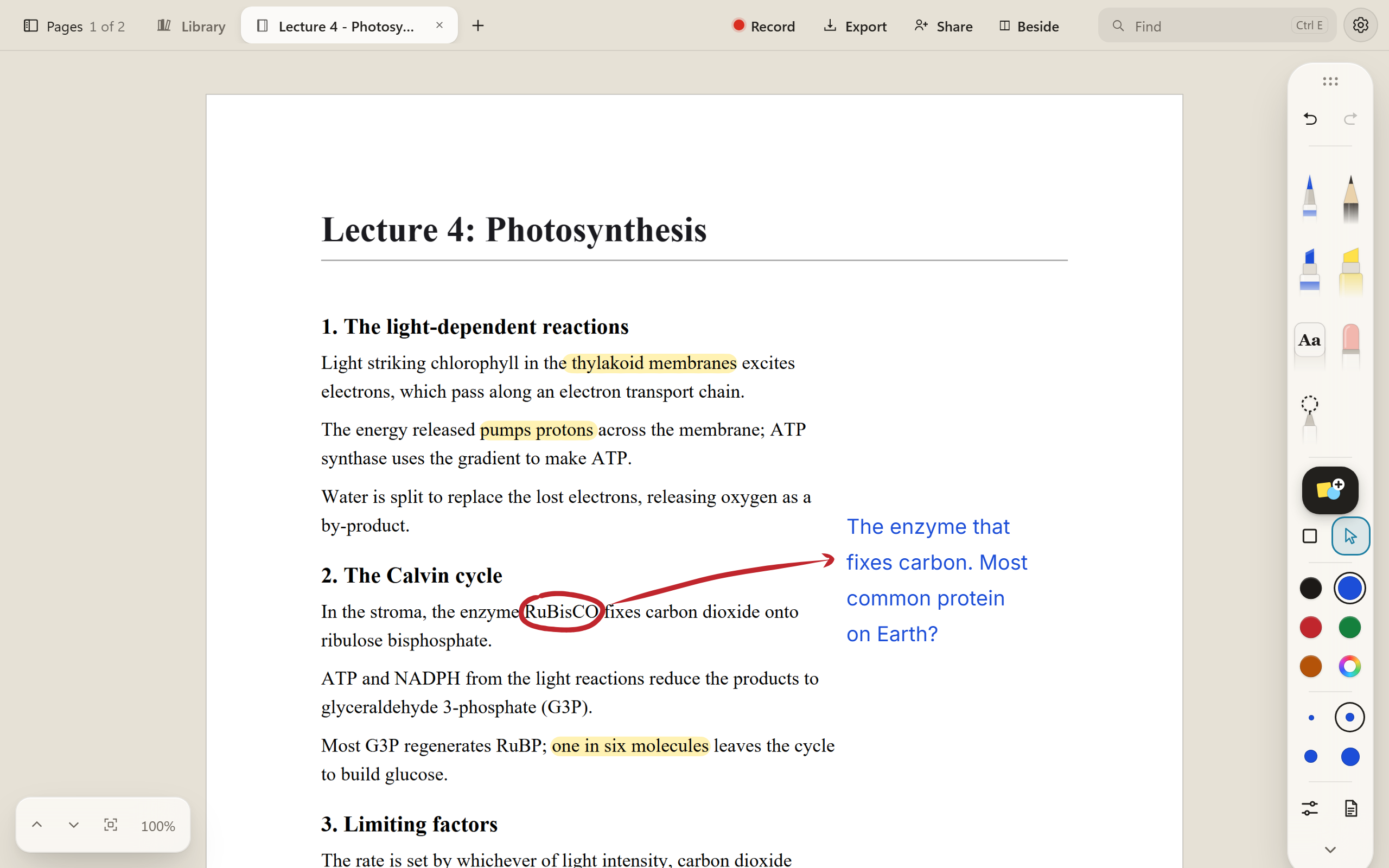
Write on PDFs.
Open a lecture handout, a paper or a form as a notebook. Highlight it, circle things, draw arrows into the margin and type notes beside them.
- Each page of the PDF is a page of the notebook, with room to write round it.
- Export puts your ink back onto the original PDF, not onto a picture of it, so the text stays sharp and searchable.
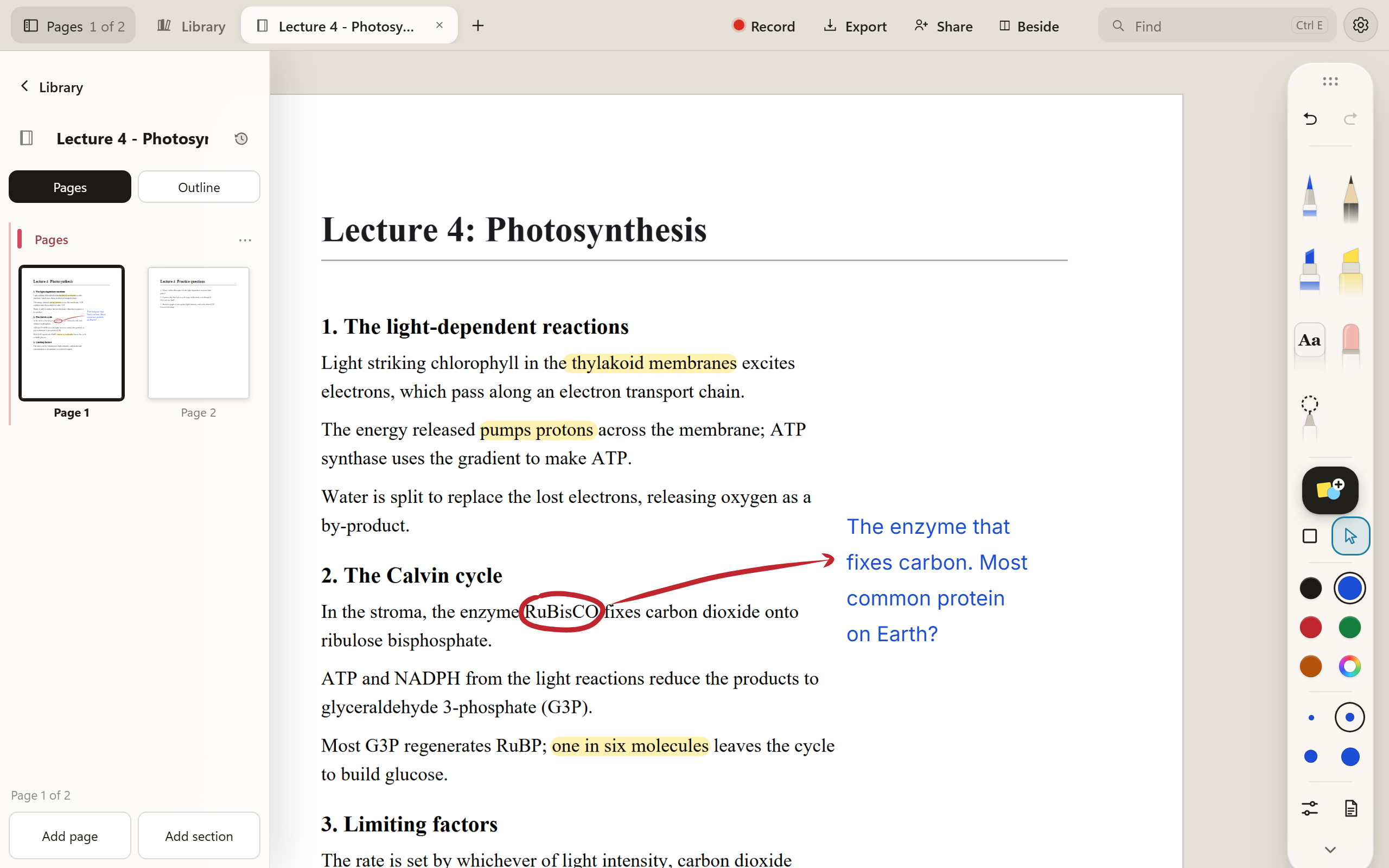
Find your way round a notebook.
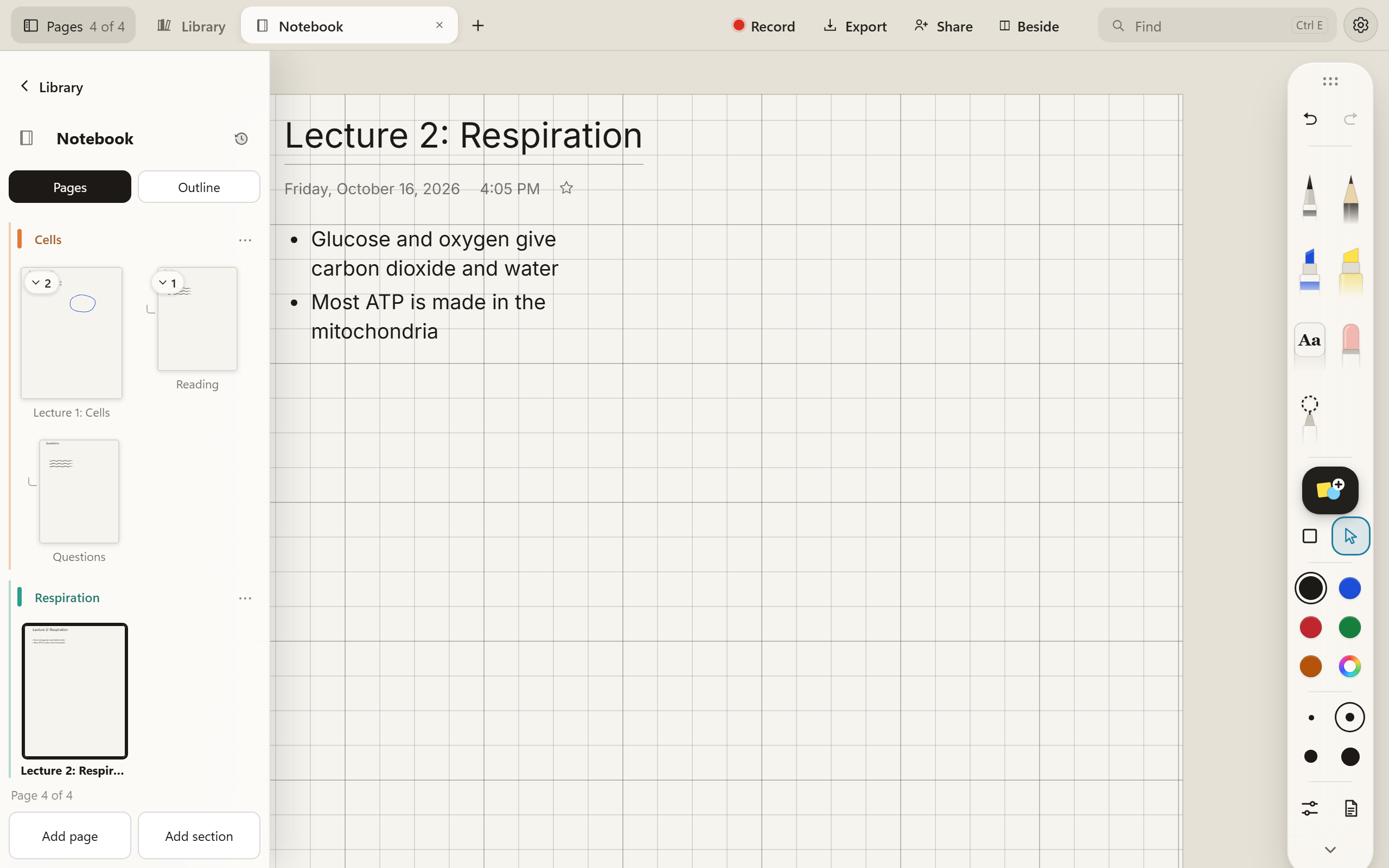
Pages opens down the side with every page as a picture of itself, so you can see where you wrote something before you go there. Outline lists the headings instead.
- Sections with colours, and subpages under a page.
- Tags, links between pages, and Ctrl E to find anything in any notebook.
- Every notebook keeps earlier versions of itself. Open one as it was last week, or put it back.
Sections, subpages and links, as in OneNote.
Group pages into sections, each with its own colour down the notebook’s edge. Tuck a page under another as a subpage, and fold subpages away when you don’t need them.
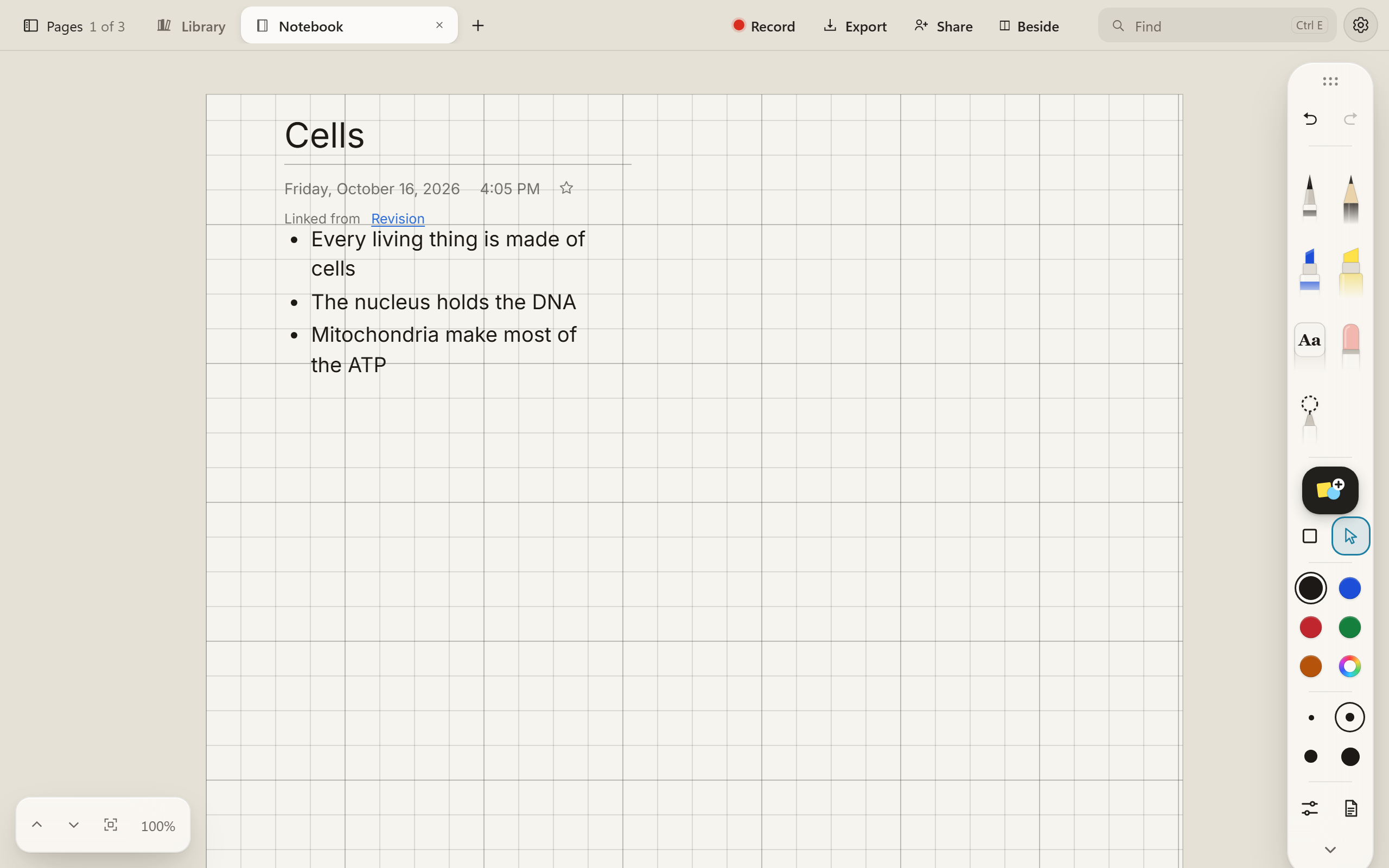
- Type [[ and part of a page’s name to link to it. The page you link to says where it’s linked from.
- Ctrl Alt ] makes a page a subpage, and Ctrl Alt [ brings it back out.
- Copy link to page puts a link on the clipboard to paste into any note.
Tags, and anything in a few keys.
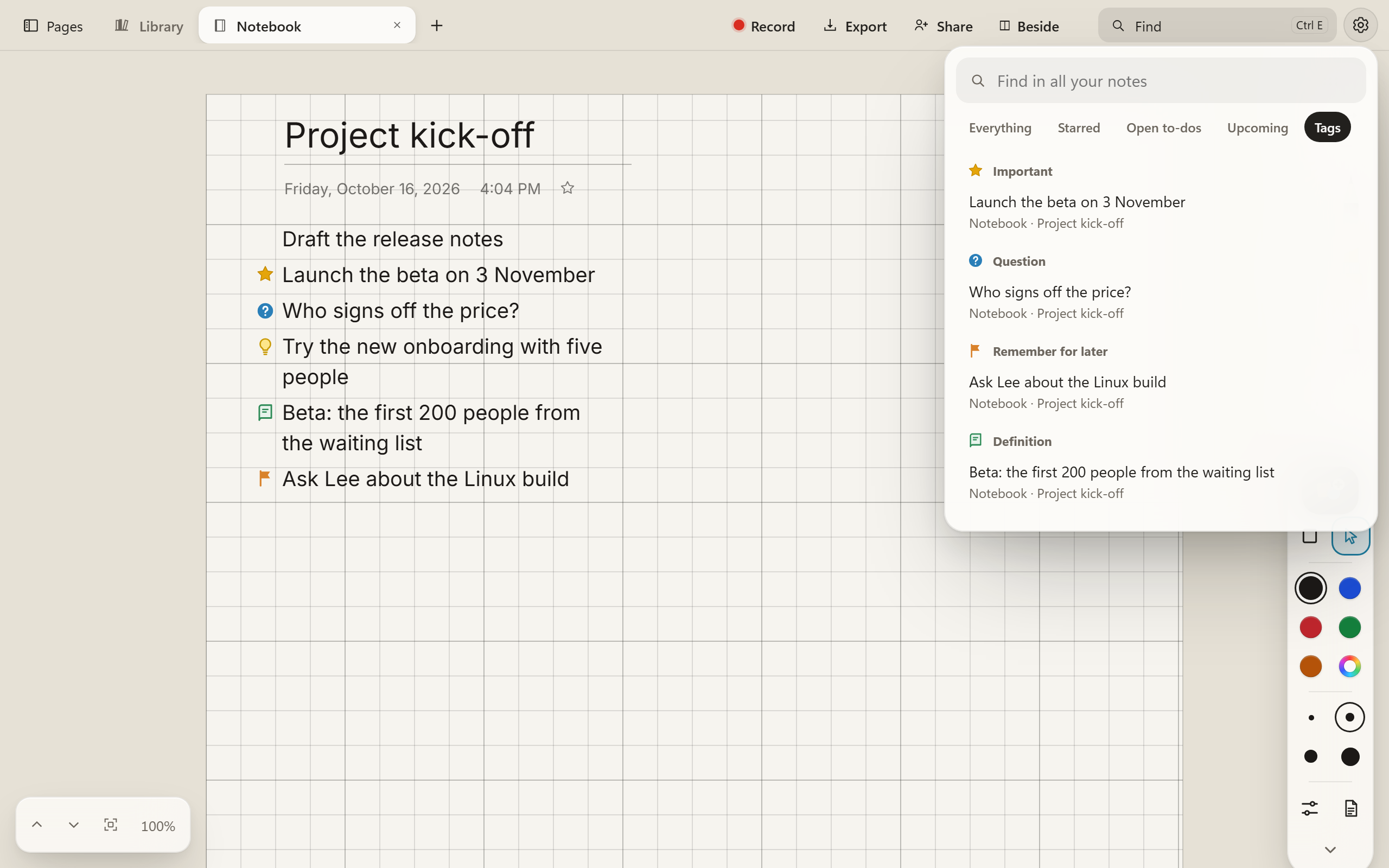
Mark a line Important, a Question, an Idea, a Definition or Remember for later with Ctrl 2 to Ctrl 7, the same keys as OneNote. Ink takes tags too, and a To do on ink ticks to Done.
- Find gathers the tags from every notebook, grouped by tag, along with open to-dos and what’s coming up.
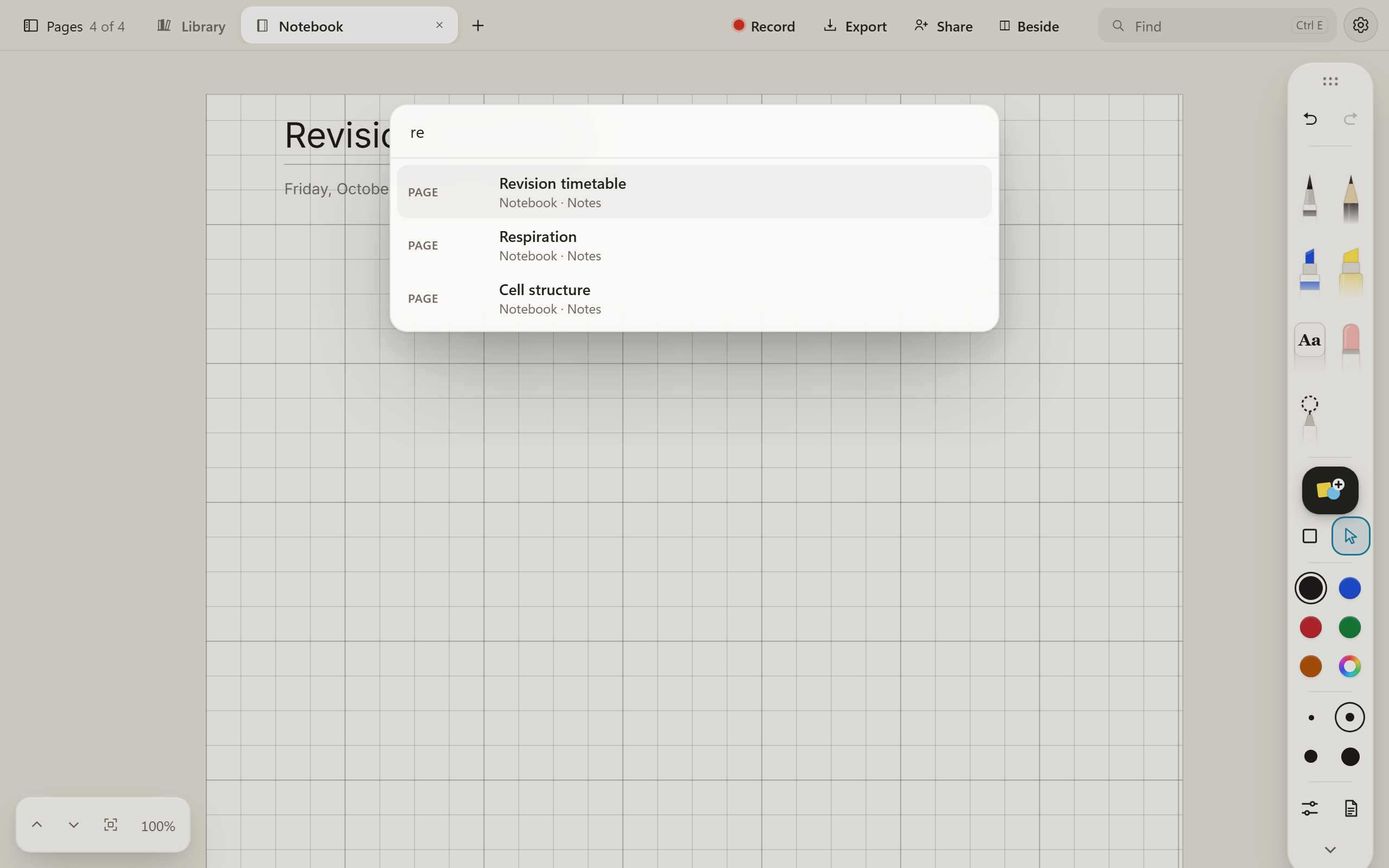
- Ctrl O jumps to any page, section, notebook or heading by part of its name.
- Ctrl F finds on this page and steps through the matches.
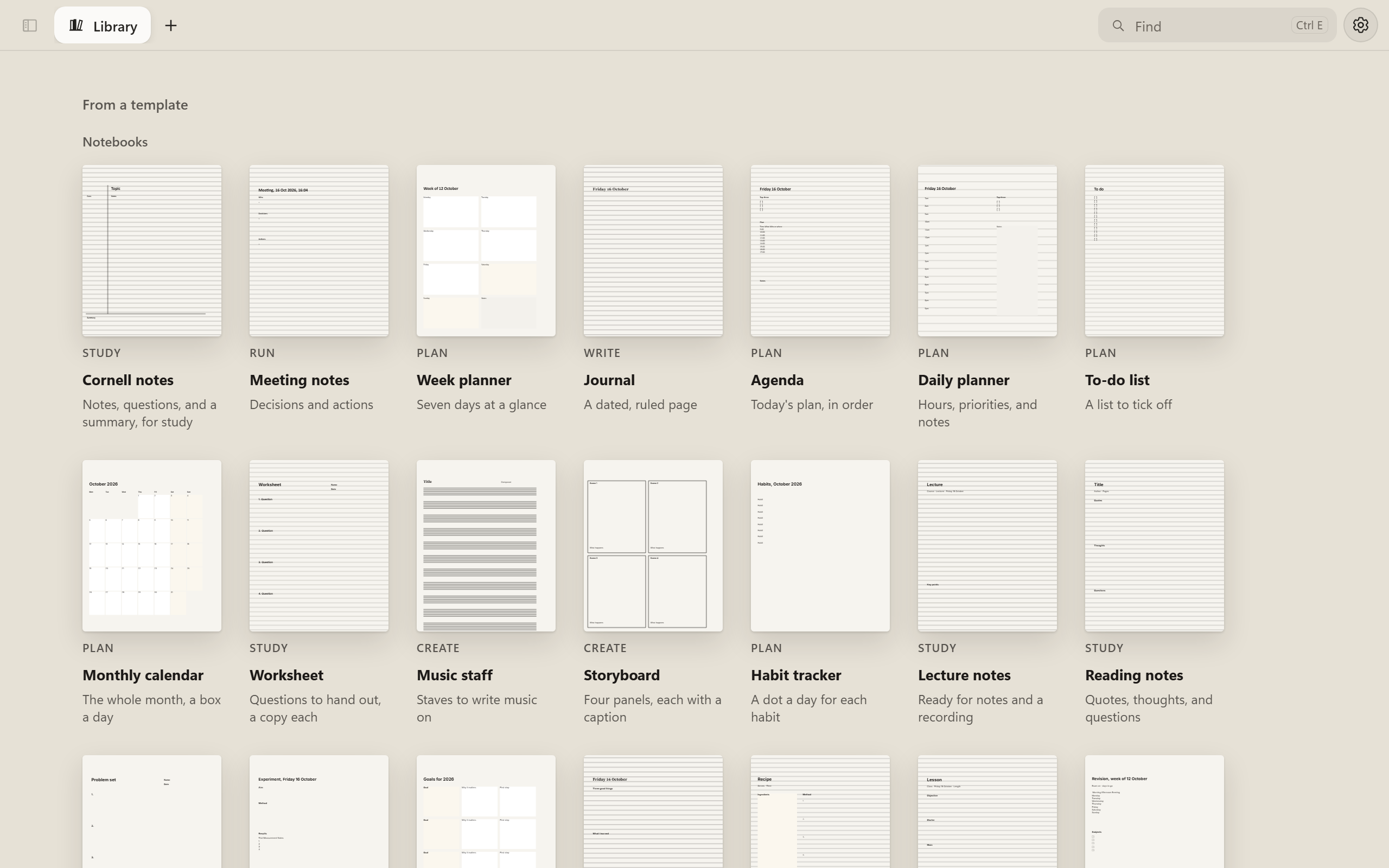
Start from one of eighty templates.
Notebooks for studying, planning and writing, and whiteboards for running a meeting or designing something. Each one shows its page as it will be, labelled with what it’s for: Study, Plan, Write, Think, Run, Design or Create.
- Cornell notes, lecture notes, flashcards, a bullet journal, a habit tracker and a revision timetable.
- Retrospectives in five kinds, kanban, SWOT, a business model canvas, user story maps and storyboards.
- Save any page as a template of your own, and it waits under Yours.
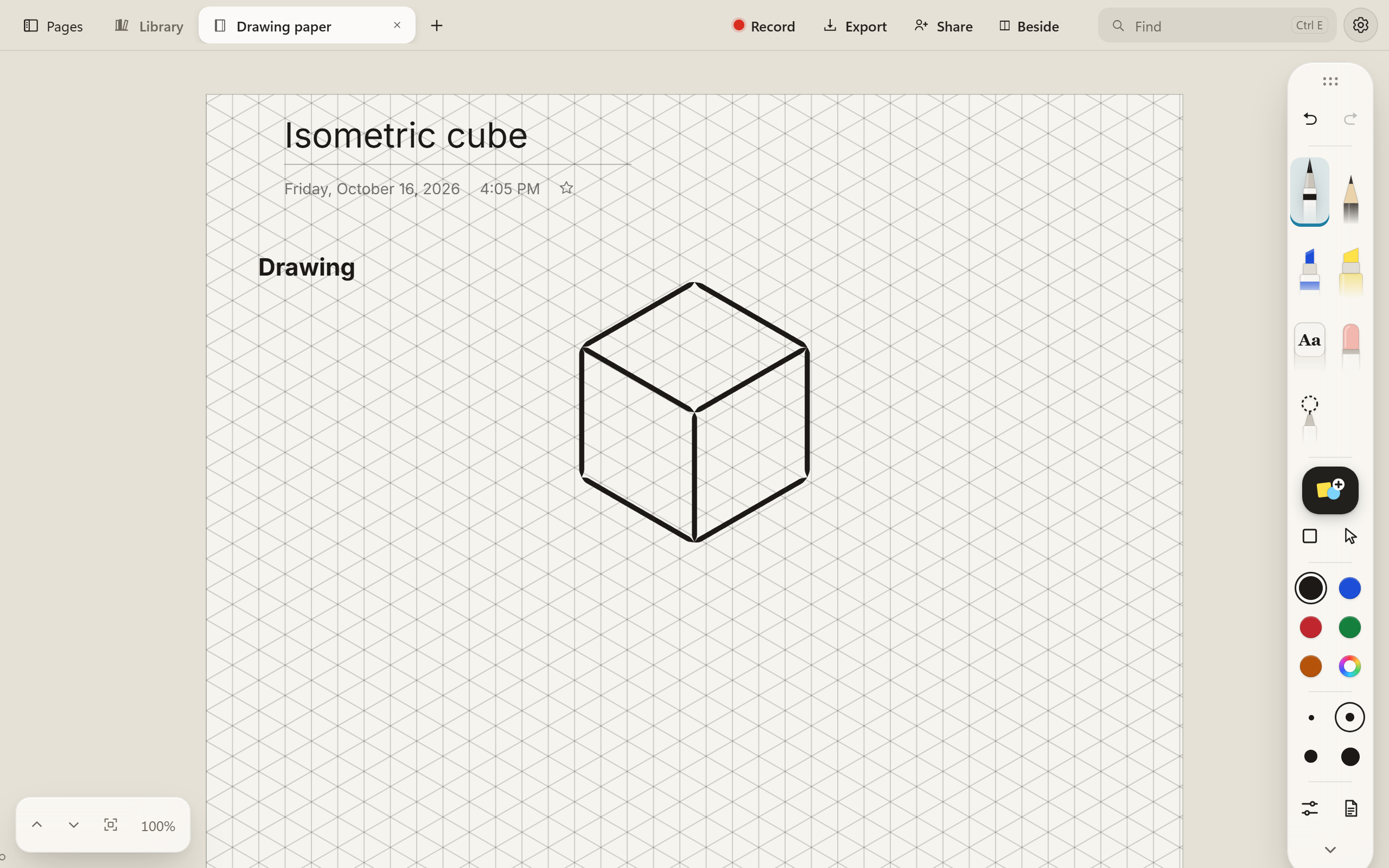
Paper for drawing, not just writing.
Alongside blank, ruled, grid and dots there are isometric, hexagon and perspective papers: for cubes and plans, for game maps and molecules, and for rooms that recede to a point.
- Handwriting guides, four lines to a row, as a copybook rules them.
- The paper prints into a PDF just as it looks on the page.
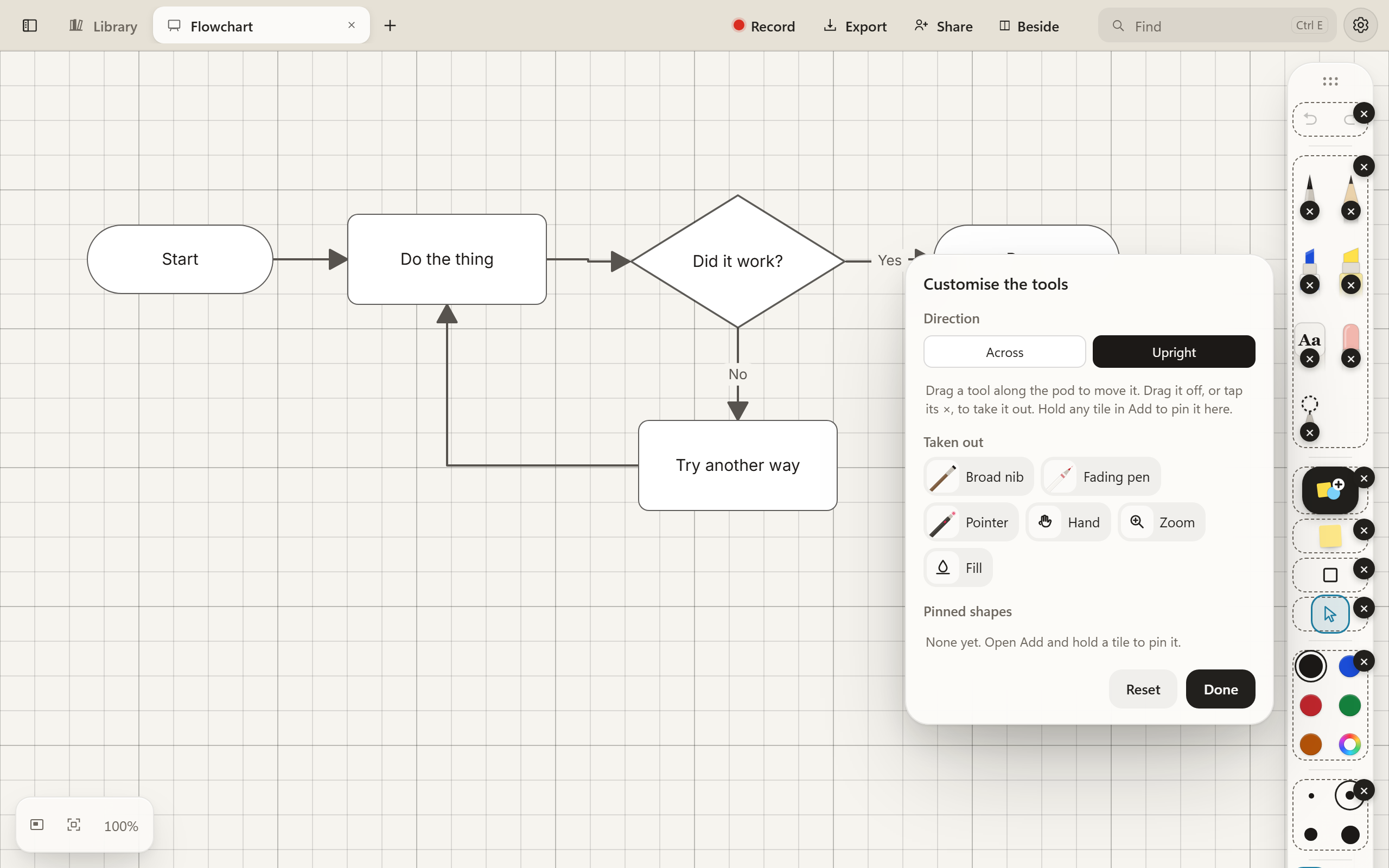
Stand the tools up, or lay them across.
The case starts upright along the right edge, where a notebook has margin to spare. On a wide whiteboard you might rather have it lying along the bottom. Drag it by its grip to anywhere on the screen.
- Take out the tools you never use, and bring back Hand, Zoom or Fill if you want them.
- Drag tools along the case to put them in your order. Reset puts it all back.
Light, Dark or Studio.
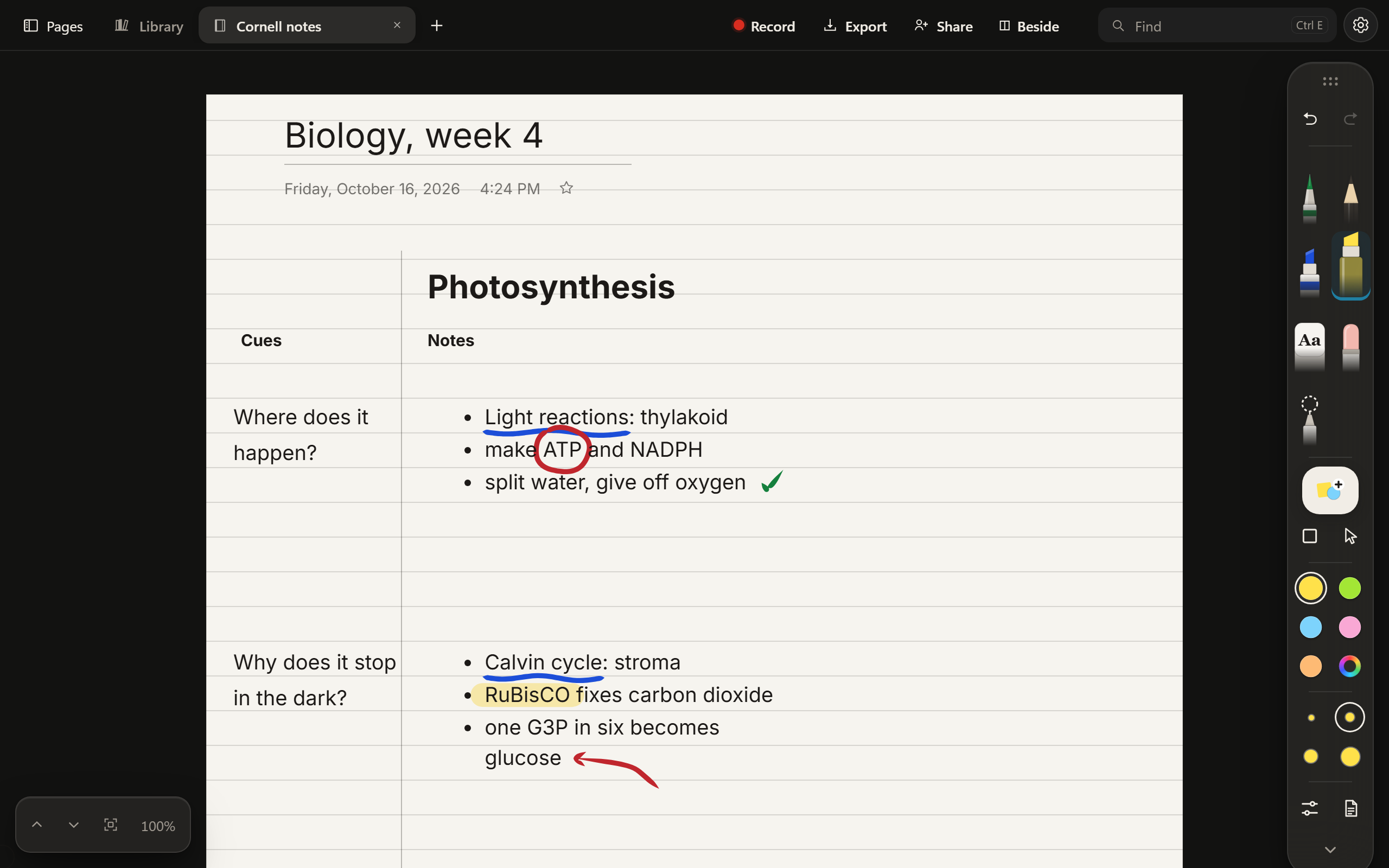
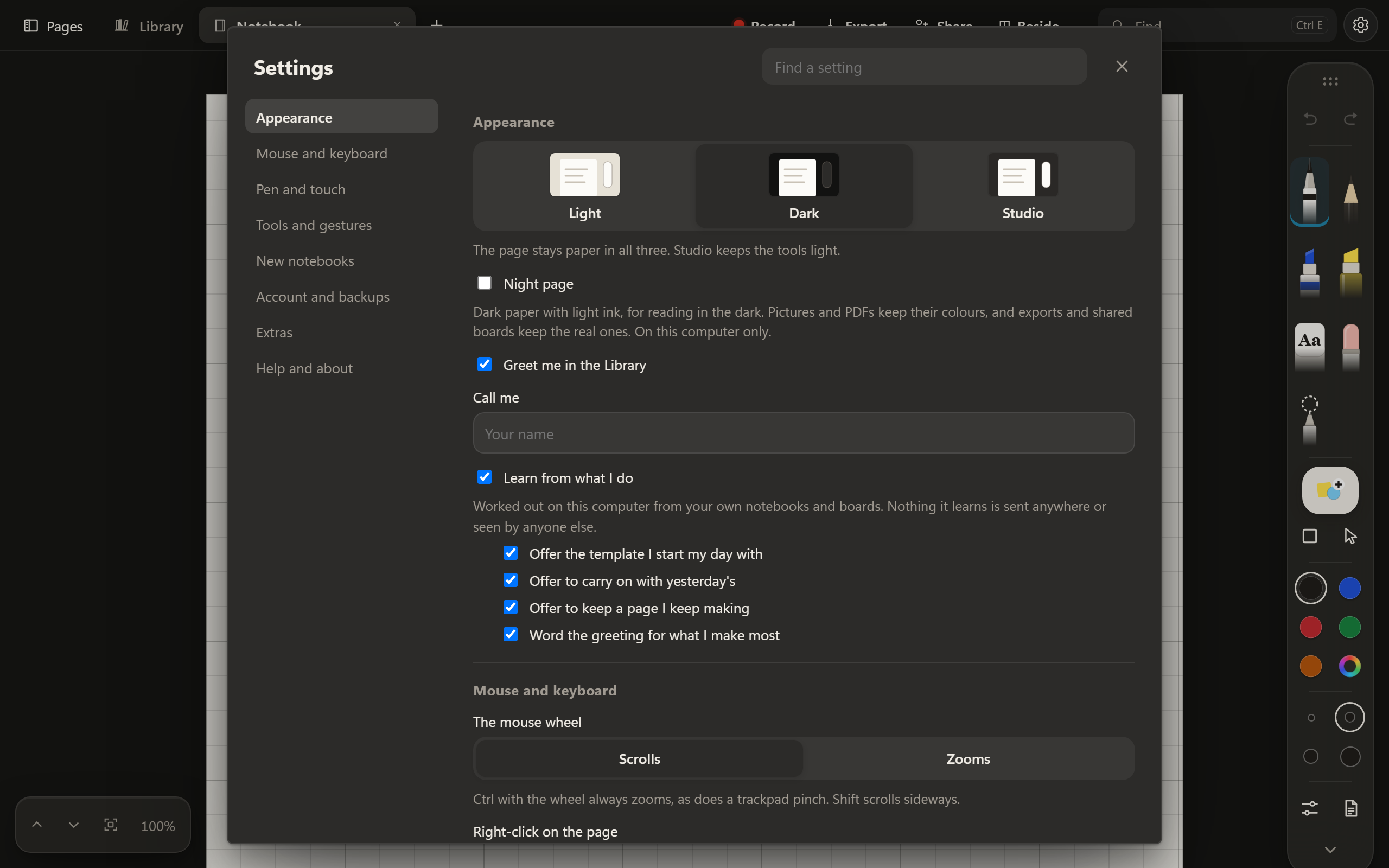
Choose how the desk and the tools look round the page. The page itself stays paper in all three, so your ink looks the same whichever you pick. Studio keeps the tools light on a dark desk.
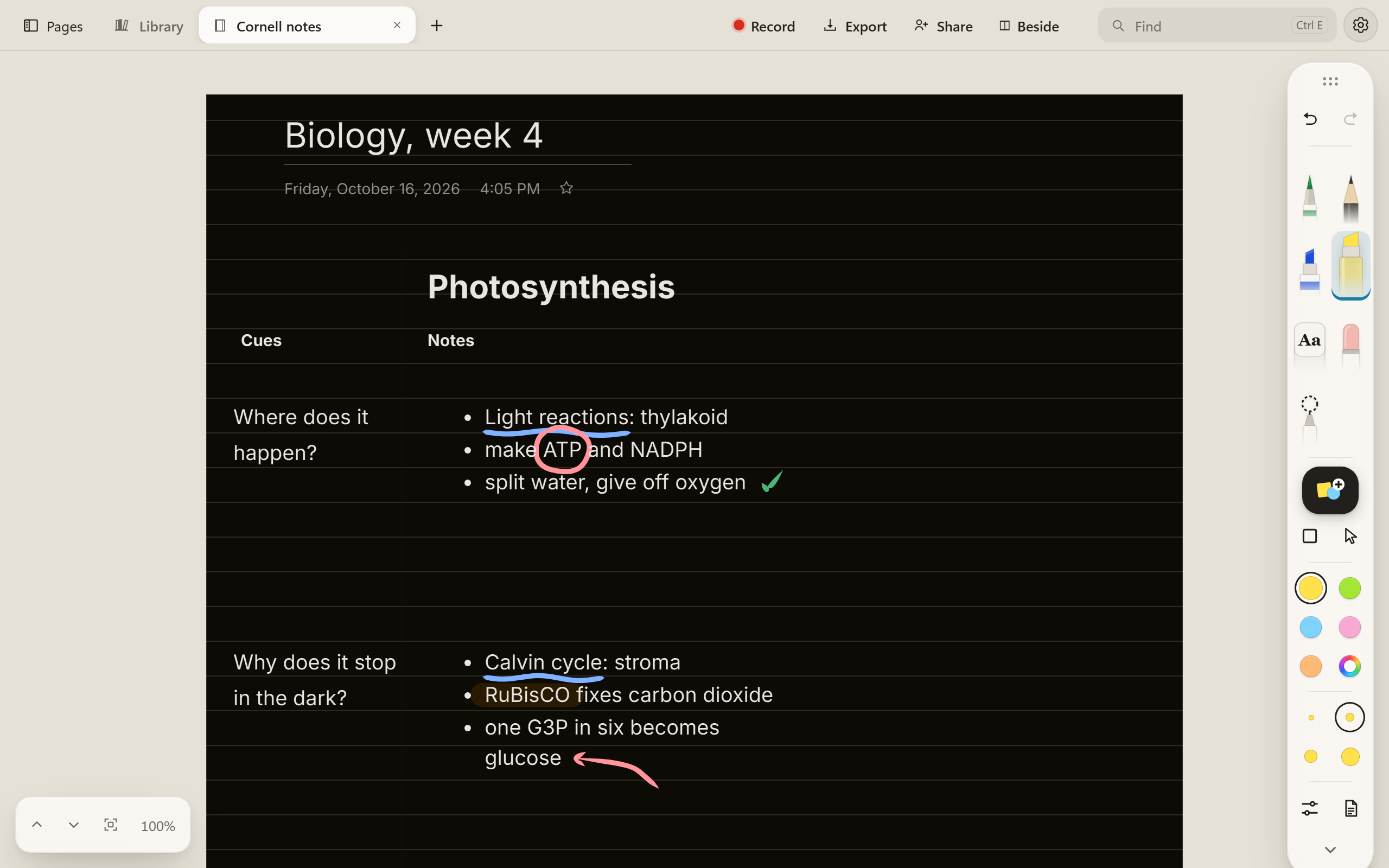
Night page, for reading in the dark.
Turn on Night page and the paper goes dark with the ink light on it, so you can read late without the glare. Pictures and PDFs keep their colours.
It only changes how the page looks on this computer. Exports and shared boards keep the real colours.
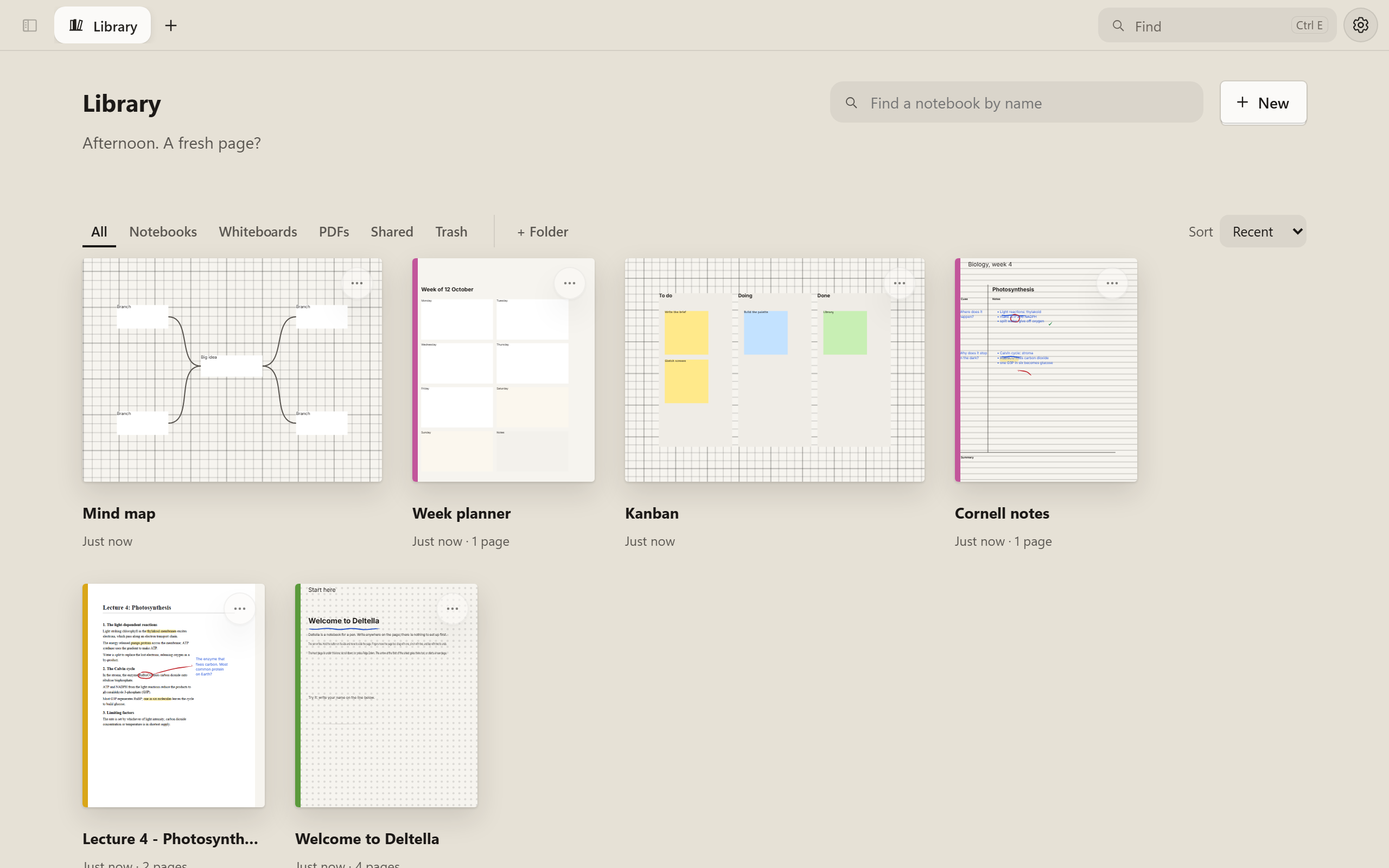
Everything in one Library.
Notebooks, whiteboards and PDFs side by side, each shown as it is, with your writing on it. Sort them, put them in folders, pin the ones you’re using, and start new ones from a template.
Export to PDF, Word or Markdown.
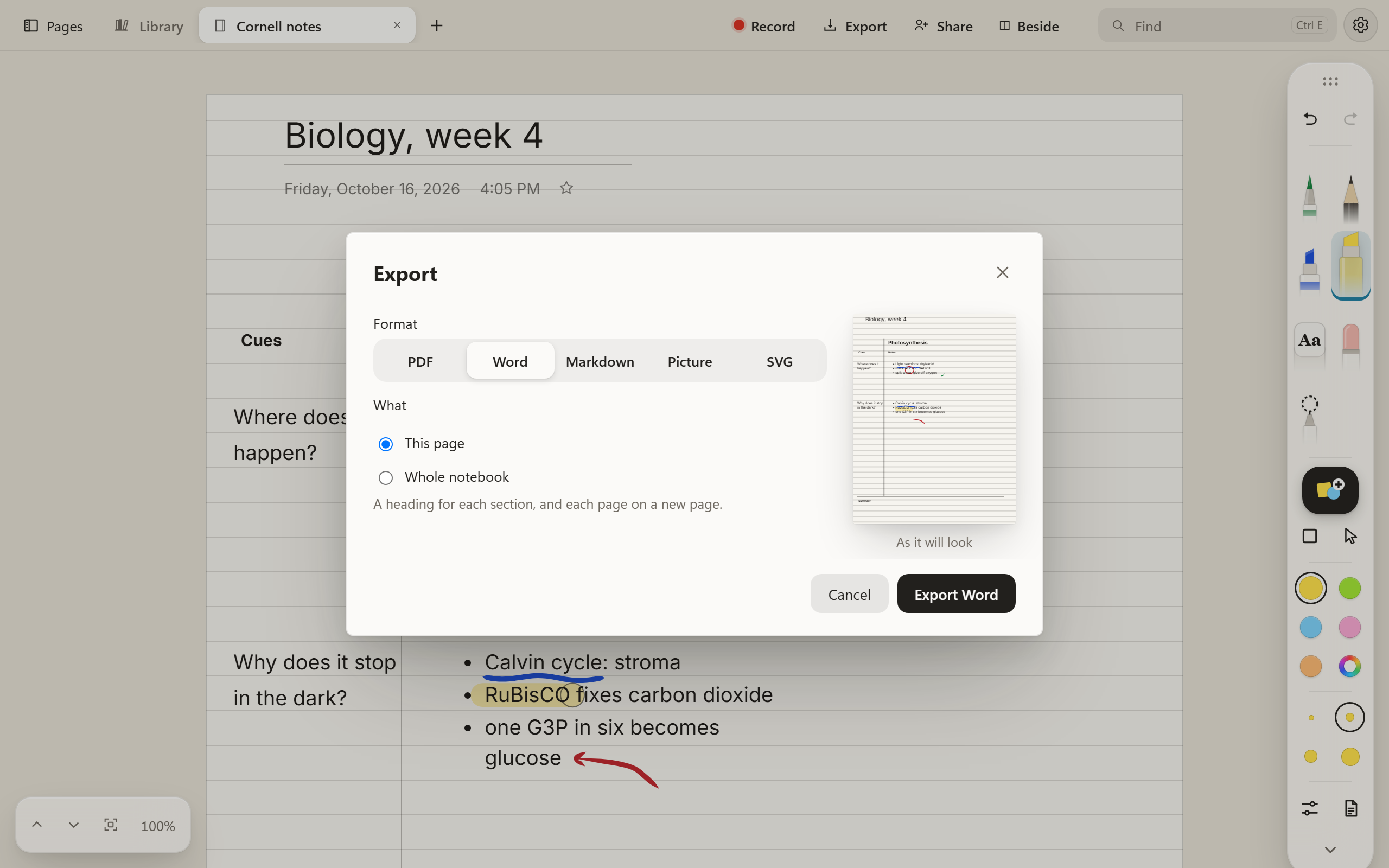
Choose a format and what goes in it, and see the page as it will look before you save. The paper comes with the page into a PDF, unless you ask for the ink alone.
- A whole notebook goes to Word, with a heading for each section and each page on a new page.
- Typed notes come out as real text, and drawings as pictures beside them.
- A page or a board also goes out as a picture or an SVG.
And the rest of it
- The pen and the mouse each keep their own tool
- Move a box with the mouse, then pick the pen back up and it’s still the pen, in the ink you left it with.
- Handwriting you can search
- Windows reads your writing in the background, so Find turns up handwritten words. Select some and it becomes type, on the line where you wrote it. Needs the Windows app.
- Record while you write
- Record a lecture or a meeting next to your notes and play it back from the page.
- Shared boards with a link
- Send an edit link or a view link. The other person opens it in Edge or Chrome, with nothing to install, and sees ink as it’s written. More on sharing.
Download for Windows Download for Linux On a phone, open Deltella in your browser at boards.deltella.com to read your notebooks and join boards, and add it to your home screen. For writing with a pen, get the app on your computer.
On a Mac? A Mac app is coming. Until then, use Deltella in your browser at boards.deltella.com, with the same account.