 Deltella
Closed beta Deltella is invite only for now. The app asks you to sign in, and your first sign-in needs an invite.
Everything paper does, and the one thing it can’t.
Write, sketch, stick notes anywhere, record the meeting beside them. Then search it, or just ask.
For Windows and Linux, with a pen or with a keyboard and mouse.
Get it from Microsoft Store Download for Linux On a phone, open Deltella in your browser at boards.deltella.com to read your notebooks and join boards, and add it to your home screen. For writing with a pen, get the app on your computer.
Rather not use the Store? Download the Windows installer instead. On a Mac? A Mac app is coming. Until then, use Deltella in your browser at boards.deltella.com, with the same account.
For Windows 10 and 11, and 64-bit Linux, in a closed beta. It installs without administrator rights and keeps itself up to date. The installer from this site isn’t signed yet, so Windows may say it protected your PC: choose More info, then Run anyway. The Store version doesn’t ask.
The tour
Write, tidy, find, and share, in under a minute.
- Ink that feels like a pen. Hold a rough box still and it snaps square. Lasso a heading and it becomes typed text.
- Pen, or keyboard and mouse. Right-click, or press the pen’s button, for the ring of colours and tools where you are. Point anywhere and type: no tool to pick first.
- Find it, open it beside. Find looks through every notebook and PDF, and opens what it finds next to your notes.
For students
Write on the lecture slides, and find it all again before the exam.
- Write on the slides. Open the lecture’s PDF and write on its pages, select and highlight its text, and export your notes back onto the original PDF.
- Record the lecture. Record sits beside the tabs and keeps going while you write. Each mark you make is tied to its moment, and playing the recording back lights up the ink as it was written.
- Find any word. Find looks through every notebook at once: typed notes, the PDFs’ text, and, in the Windows app, your handwriting.
For teachers & tutors
Hand out a page, see every student’s work as they write, and show one to the class.
- Hand it out. Share a notebook as a hand-out link. Each student who opens it gets their own copy of the page, named for them, and you see every page as it fills in.
- Show it to everyone. Put one student’s page on every screen to look at together, then Stop, and everyone is back on their own.
- No accounts for the class. Students open the link in Edge or Chrome, with nothing to install. For one-to-one tutoring, share a board and you both write on it live.
- Record the lesson. Record keeps going while you work through an example, and playing it back lights up the ink as it was written. The Windows app also makes a transcript that Find can search.
Class mode is new in the beta. The beta is for people aged 16 and over.
For engineers & architects
Think it through on paper, then tidy the sketch into a diagram.
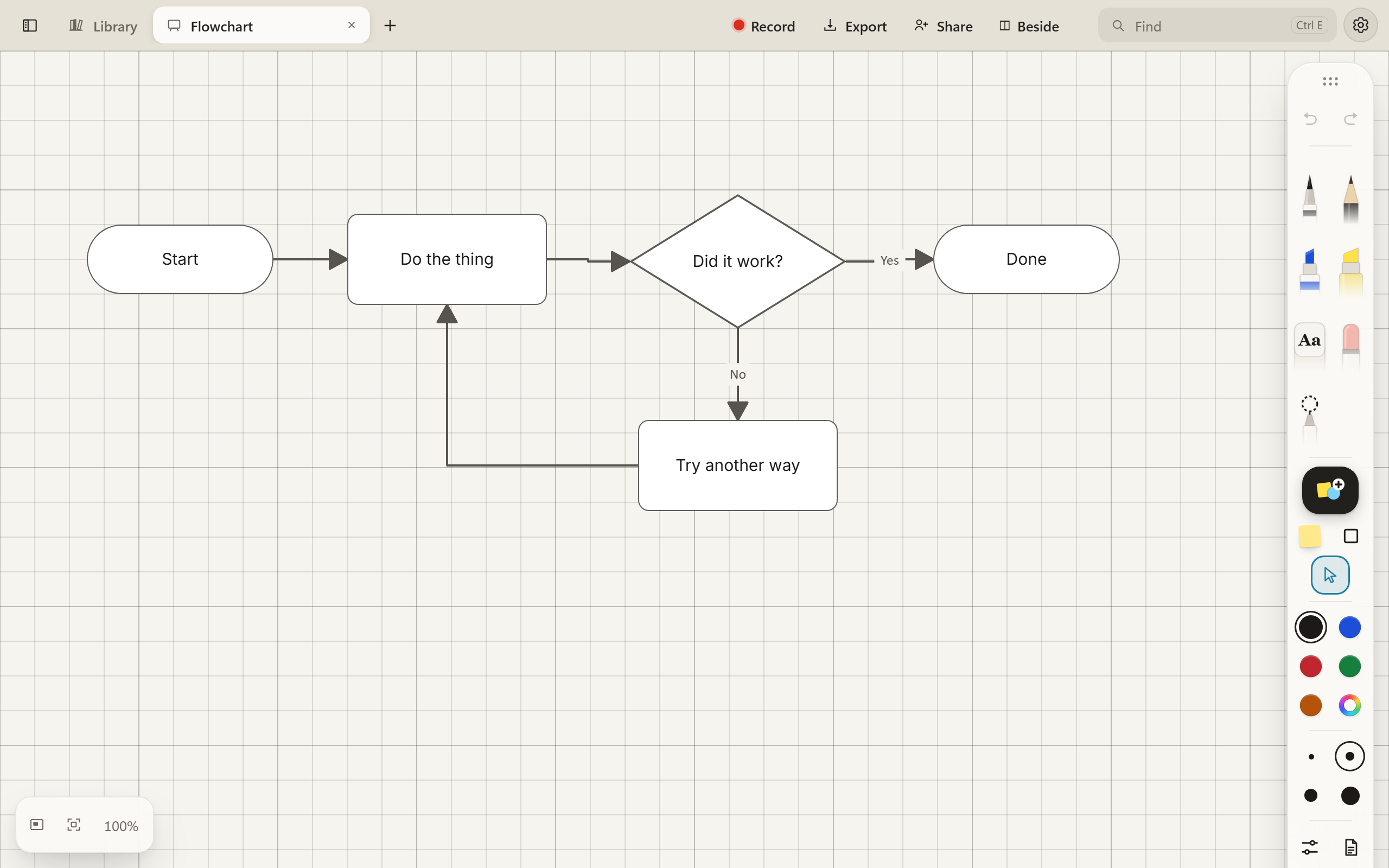
- Sketch to diagram. Draw rough boxes, circles and diamonds with lines between them, and Make a diagram turns them into a flowchart with joined arrows.
- Shapes that join up. Flowchart, UML, entity-relationship and cloud shapes, with connectors that follow the boxes, straight, elbow or curved.
- Drawings and numbers. Isometric and graph papers, room to write around a PDF drawing, lengths measured to a scale, layers, and sums worked out as you type them.
For professionals
Meeting notes that end as a list of what happens next.
- Typing that keeps up. Type anywhere on the page with the keys you know from OneNote: headings, lists, tables and to-do boxes, with the pen beside them for a quick drawing.
- Nothing gets lost. Mark a line Important, Question or To do. Find lists every open to-do, what is due, and every tag, across all your notebooks.
- Ready for the day. Meeting, agenda, week planner, retrospective and kanban templates. Once the Library learns how you start the day, it offers to start today’s page for you. Export to Word, PDF or Markdown when someone needs a document.
Your handwriting can become type, on the line where you wrote it. That needs the Windows app: Windows reads it.
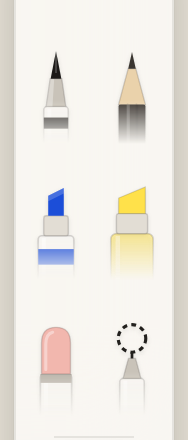
See what else it does, from pulling a tool out onto the page to the ring at the pen tip.
Share a notebook or a whiteboard with a link.
Send an edit link or a view link. The other person opens it in Edge or Chrome and they’re in, with nothing to install and no account. Ink appears as it’s written, and anything drawn offline merges when you reconnect.
During the closed beta the app needs an account. Your notebooks are kept on it at boards.deltella.com and follow you to each computer you sign in on. The people you send a link to still need no account. What the server keeps.